
How to Use Qwen Chat: A Step-by-Step Guide to chat.qwen.ai
Qwen Chat is the web interface for talking to Qwen, the family of large language models built by Alibaba Cloud, and you reach it directly at chat.qwen.ai. You can also try Qwen Chat free right here on this page, no separate account required. This guide walks through signing in, understanding the interface, picking a model, chatting, coding, uploading files, and getting better answers.
This site is unofficial and not affiliated with Alibaba or Qwen; the official chat is at chat.qwen.ai.
What Is Qwen Chat?
Qwen Chat gives anyone with a browser direct access to the Qwen models without installing anything, and understanding what sits behind the chat box makes the rest of this guide easier to follow.
Qwen in one paragraph
Qwen — whose Chinese name is Tongyi Qianwen (通义千问) — is a family of large language models developed by Alibaba Cloud, as documented on Wikipedia. Qwen Chat, hosted at chat.qwen.ai, is the official web app that lets you talk to these models directly in your browser instead of going through code or a developer console. The Qwen lineup has evolved through several generations, and Qwen3 is described by the project as a recent generation of the family, according to the official Qwen documentation.
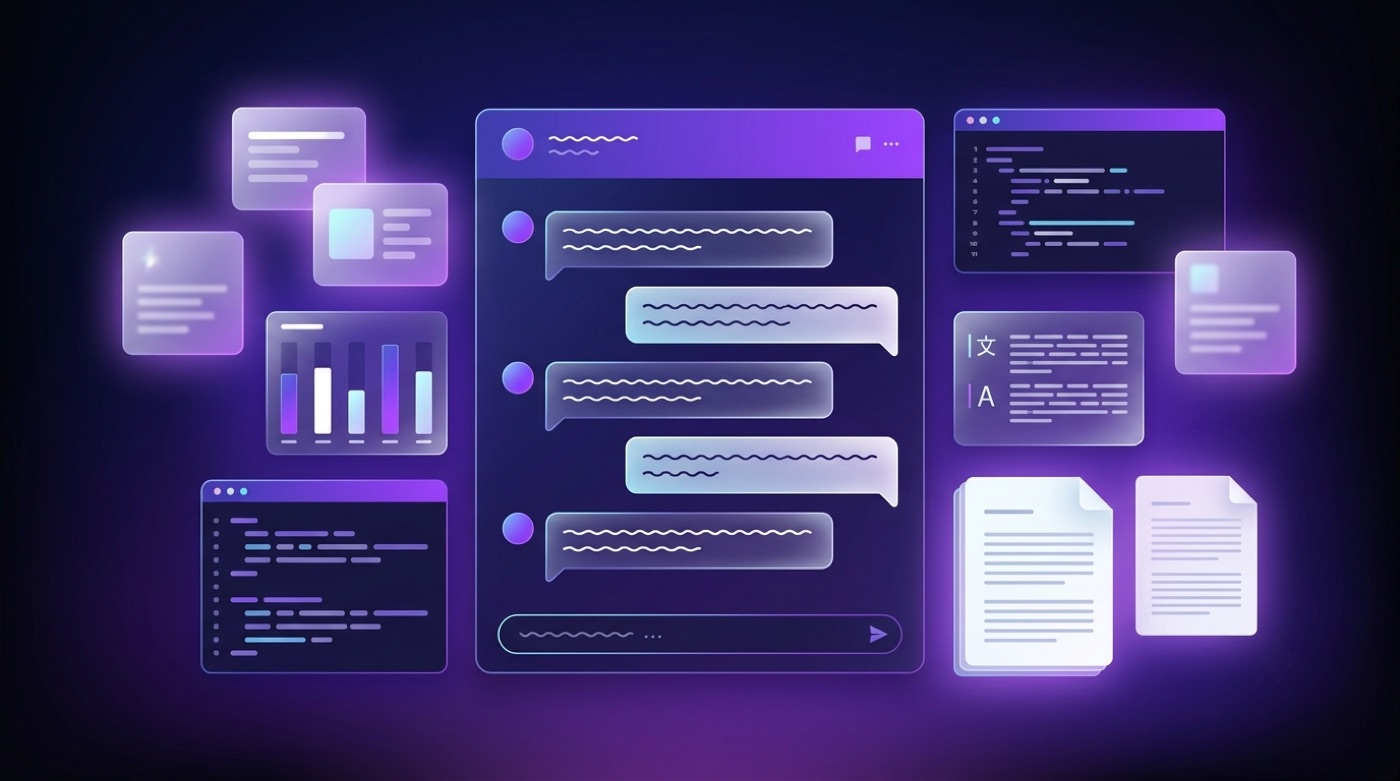
Instead of downloading anything or writing code, you simply open a browser tab and start typing — Qwen Chat handles the connection to whichever model line you pick behind the scenes. That makes it the fastest way to get a feel for how Qwen responds before considering any deeper integration.
Open-weight roots
Many Qwen models are released as open-weight models on both Hugging Face and GitHub, which is part of why Qwen also shows up inside third-party tools and platforms beyond the official chat. Licensing details vary from one model to another, so it’s worth checking the specific model card before assuming a particular license applies.
This open distribution is also why you’ll sometimes see Qwen models mentioned in unrelated software or research projects — developers can pull the published weights directly rather than going through Qwen Chat at all.
“Qwen … is a family of large language models developed by Alibaba Cloud.” — Qwen, Wikipedia
Getting Started at chat.qwen.ai
Getting into Qwen Chat for the first time takes only a couple of steps, and the process is designed to feel familiar if you’ve used any other modern chat app before.
Step 1 — Open the site and sign in
The whole process happens on a single page, without any separate download or install:
- Navigate to chat.qwen.ai in your browser.
- Look for the sign-in options offered on the page — the interface typically lets you sign in with the choices presented there, such as creating an account or using a supported sign-on method.
- Follow the on-screen prompts to complete verification.
- Confirm your account setup if the page asks for any additional details.
Exact sign-in options can change over time, so treat the list on the page itself as the source of truth rather than any fixed set of providers.
Step 2 — Land in the chat
Once you’re signed in, you arrive at the main chat screen, which centers on a message box where you type your first question. From here, everything else in this guide — model selection, prompting, uploads — happens inside that same screen.
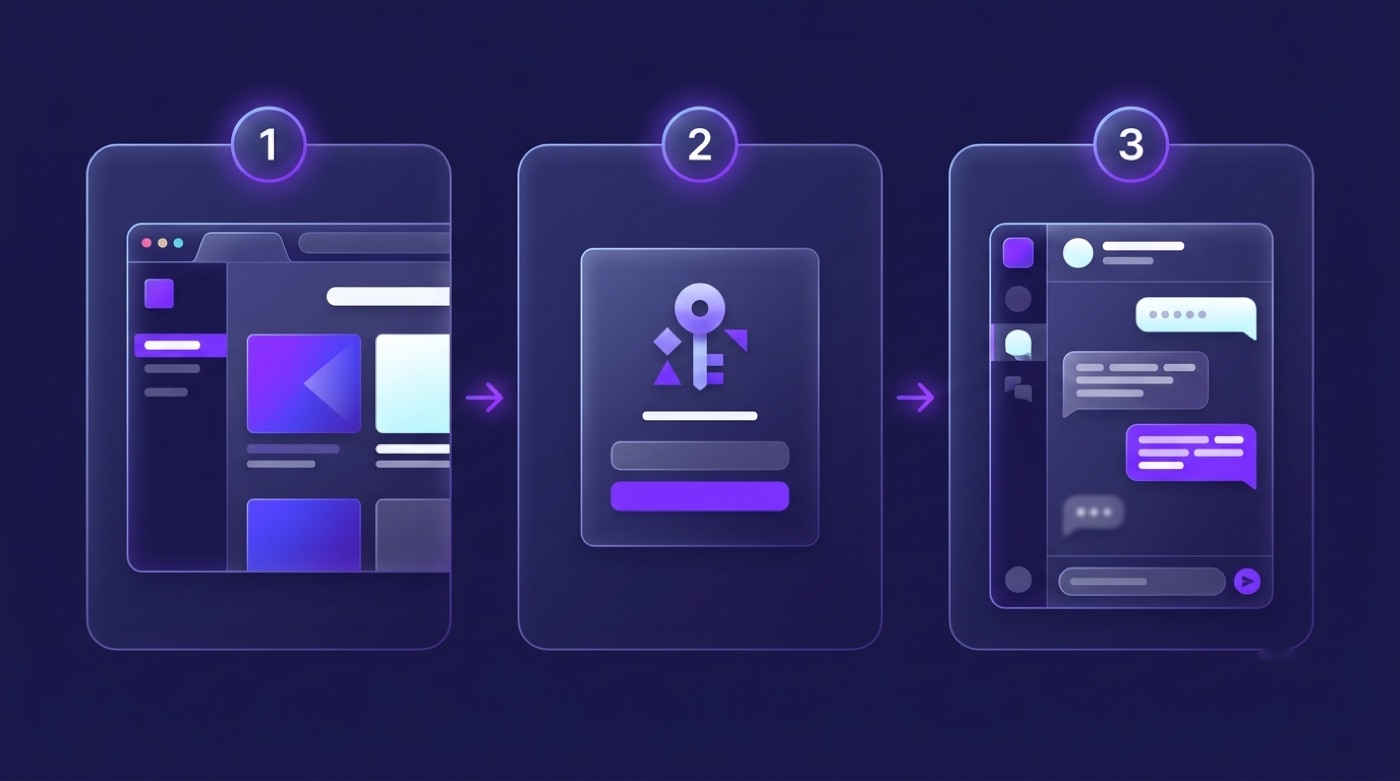
There’s no separate setup step before you can start chatting — the message box is ready as soon as the page loads, so the fastest way to learn the interface is simply to type something and see how it responds.
The Qwen Chat Interface
Before typing anything, it helps to know what you’re looking at. The interface typically includes:
- A message input box at the bottom of the screen for typing prompts
- A running conversation thread in the center showing your exchange with Qwen
- A sidebar or panel listing your past conversations for quick access
- A model selector for switching between different Qwen model lines
- Controls near the input box for attachments and other options
Labels and exact placement can shift as the product evolves, so think of this as a general map rather than a pixel-perfect description. Roughly, the regions break down like this:
| Interface region | What it typically does |
|---|---|
| Message input | Where you type and send prompts |
| Conversation thread | Shows the back-and-forth of the current chat |
| Conversation list/sidebar | Lets you jump back to earlier chats |
| Model selector | Switches between Qwen model lines |
| Attachment controls | Attaches files or images to a message |
Selecting a Model
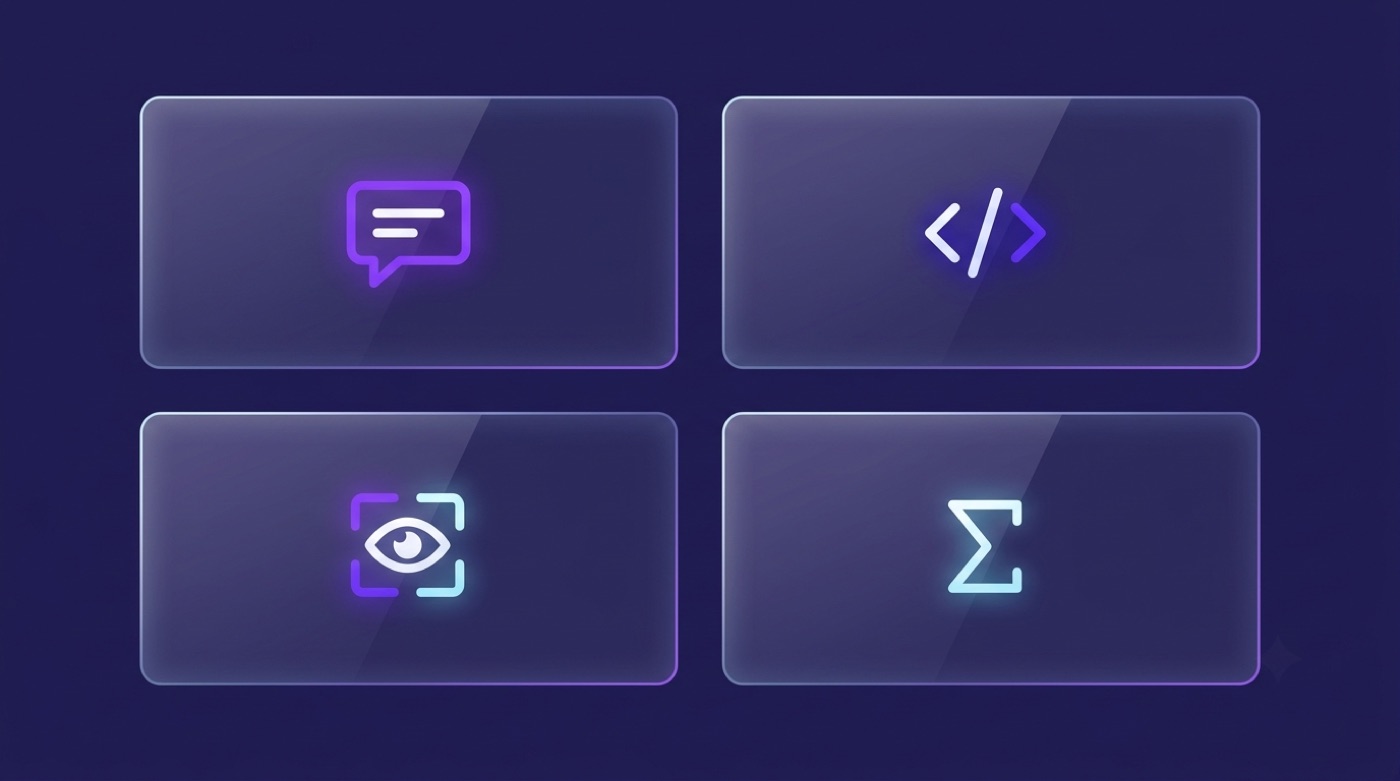
Qwen Chat gives you access to the broader Qwen family, and different lines within that family are tuned for different kinds of work. According to github.com/QwenLM, the project maintains several specialized variants alongside the general-purpose models. Picking the right line up front usually saves a round of follow-up prompts, since a general model asked to debug code will often be slower to land on a fix than one tuned for the job.
| Model line | Best for |
|---|---|
| General Qwen chat model | Everyday Q&A, writing, general reasoning |
| Qwen-Coder | Programming, code review, debugging |
| Qwen-VL (vision-language) | Understanding images, screenshots, charts |
| Math-focused Qwen | Step-by-step math and proofs |
The exact set of models shown in the picker depends on what’s currently offered in Qwen Chat, so the list you see may differ slightly from this table over time. Matching the model to the task is usually more useful than defaulting to whichever one loads first.
Chatting and Prompting Basics
Start with a clear question. Type what you actually want to know or accomplish, then send it — Qwen replies in the same thread.
Read the full reply before following up. Qwen Chat keeps context within a conversation, so you can ask follow-up questions without repeating earlier details.
Start a new chat to reset context. If you’re switching to an unrelated topic, opening a fresh conversation avoids mixing unrelated context into the answer.
A few prompting habits tend to produce better results across most chat assistants, Qwen included:
- Give Qwen a role or persona relevant to your task (for example, “act as a code reviewer”).
- State the output format you want — a list, a table, a short paragraph.
- Provide an example of the kind of answer you’re after when the task is nuanced.
- Ask explicitly for step-by-step reasoning on multi-part problems.
These tips are general and model-agnostic — they apply whether you’re using Qwen Chat or a different assistant entirely.
Coding with Qwen
Qwen Chat is a practical option for day-to-day programming help. You can paste a code snippet and ask for a fix or an explanation, request a function written in a specific language, or ask Qwen to generate tests for existing code. The code-tuned line in the family, Qwen-Coder, exists specifically for this kind of work, according to github.com/QwenLM. Specific IDE integrations aren’t something to assume are built in — stick to what the chat interface itself offers unless you’ve confirmed an integration exists.
Uploading Files and Images
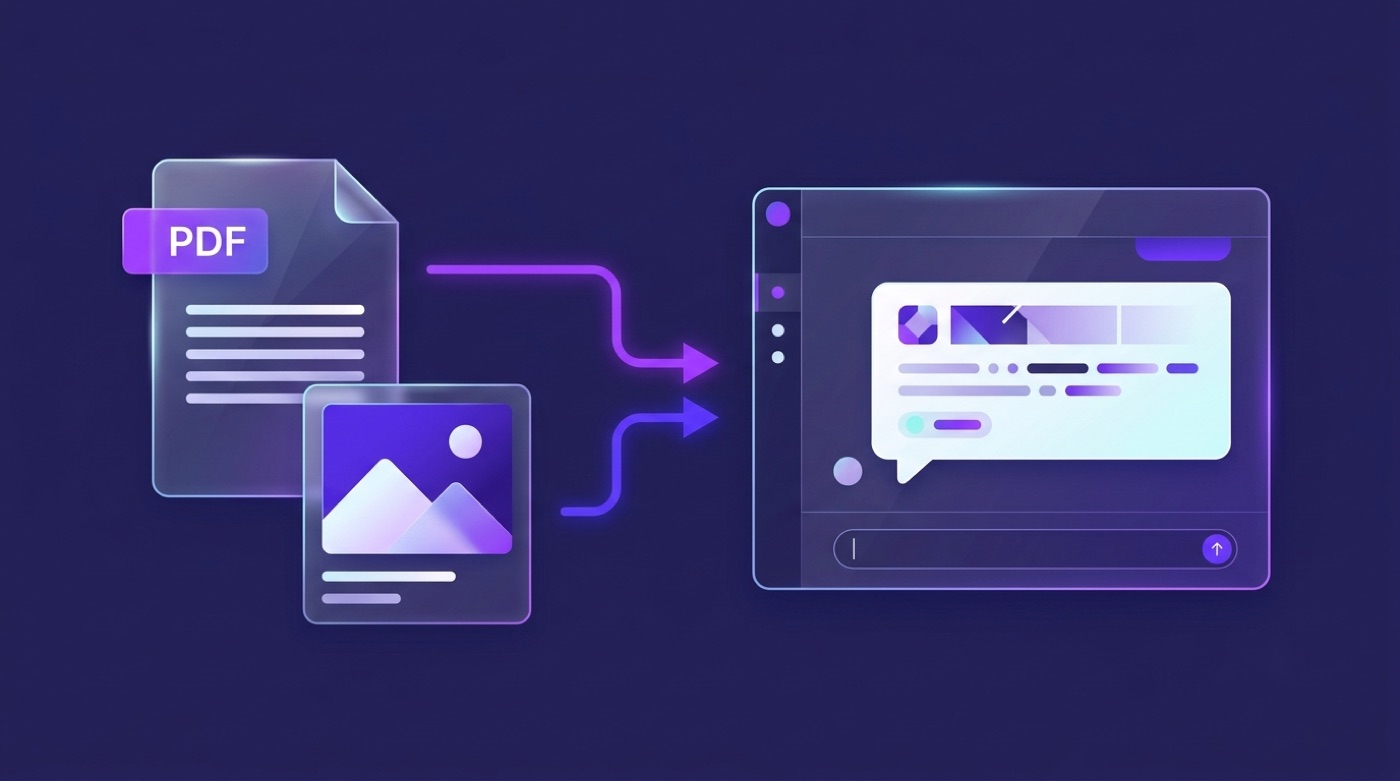
The interface typically lets you attach files, such as PDFs or documents, and images to a message, then ask questions about that content directly in the chat. Image understanding in particular is handled by the vision-language line of the family, Qwen-VL. Exact supported file types and size limits aren’t fixed facts worth memorizing here — the interface typically lets you attach what it currently supports, and that can change.
Web search grounding
Qwen Chat may offer a web-search toggle so that answers can be grounded in more current information than the model’s training data alone. If web search is available, enabling it lets Qwen consult live sources when forming a response — though you shouldn’t assume every grounded answer comes with visible citations by default.
This matters most for questions about recent events or fast-changing facts, where a model’s built-in training data alone can go stale. Toggling web search on for that kind of question, when the option is present, is generally worth the extra latency.
Image and video generation
The broader Qwen model family includes image-oriented models, and the interface may expose generation features depending on what’s currently offered. Rather than describing a specific generator UI, it’s more accurate to say this capability exists at the model-family level and check the live interface for what’s currently available.
If you’re specifically looking to generate visuals, check the message input area and any option menus in Qwen Chat directly, since generation-related controls — if present — tend to live alongside the regular text input rather than in a separate part of the site.
Tips for Getting Better Answers
A short checklist for getting more out of any Qwen Chat session:
- Pick the model line that actually fits the task — general, coder, vision-language, or math
- Be specific about what you want instead of asking broad, open-ended questions
- Give context and, where useful, concrete examples
- Ask for the exact output format you need — list, table, code block
- Break large tasks into smaller steps instead of one giant prompt
- Verify anything important — like other large language models, Qwen can be wrong
- Start a fresh chat when you move to a new topic, rather than overloading one thread
Using the Free Qwen Chat on This Page
If you’d rather skip the sign-in step entirely, this site offers a free Qwen Chat experience you can use without leaving the page. It’s a convenient way to ask a quick question or get a feel for how Qwen responds before deciding whether to set up an account on the official site. You can try Qwen Chat free right here. As a reminder, this page is unofficial and not affiliated with Alibaba or Qwen — the official app remains chat.qwen.ai.